One-line summary
Instead of confusing file names like "final_real_final.jpg", discover how intuitive naming conventions and separate albums can completely eliminate client confusion.
"Is this the final version?"
It can be a bit awkward to receive this question just when you thought you were done with the delivery. This usually happens when multiple working versions get mixed up, like this:
IMG_8273_edit.jpg
IMG_8273_edit_v2.jpg
IMG_8273_final_real.jpg
While these tags are unavoidable during the editing process, clients can feel unsure about which files they are meant to keep. Let's look at how to deliver photos intuitively, so your clients never have to wonder, "Is this the right one?"
The friction of messy file names
- Client anxiety: They worry, "What if I print the wrong version for my frame?" The photos they should be enjoying comfortably become a source of stress.
- Wasted communication: They eventually have to reach out to the studio to confirm, taking up your time as you cross-check each file name.
- Difficulty organizing: It becomes harder for clients to search for or organize their photos later.
Solution 1: Create an intuitive file naming rule
The most basic step is to consistently batch-rename files during the Export stage.
Try combining uppercase/lowercase letters, underscores (_), and numbers to create a unified rule.
Recommended naming convention:
[Date]_[Client/Project]_[Version]_[Sequence]
260220_Oh_Retouched_001.jpg
By organizing files this way, clients can intuitively understand what each file means, and it makes it much easier for you to find the original files in your backup drives later.
Solution 2: An environment where file names don't matter (Pixpics Gallery)
Actually, the most perfect solution is creating an experience where clients don't even need to look at the file names.
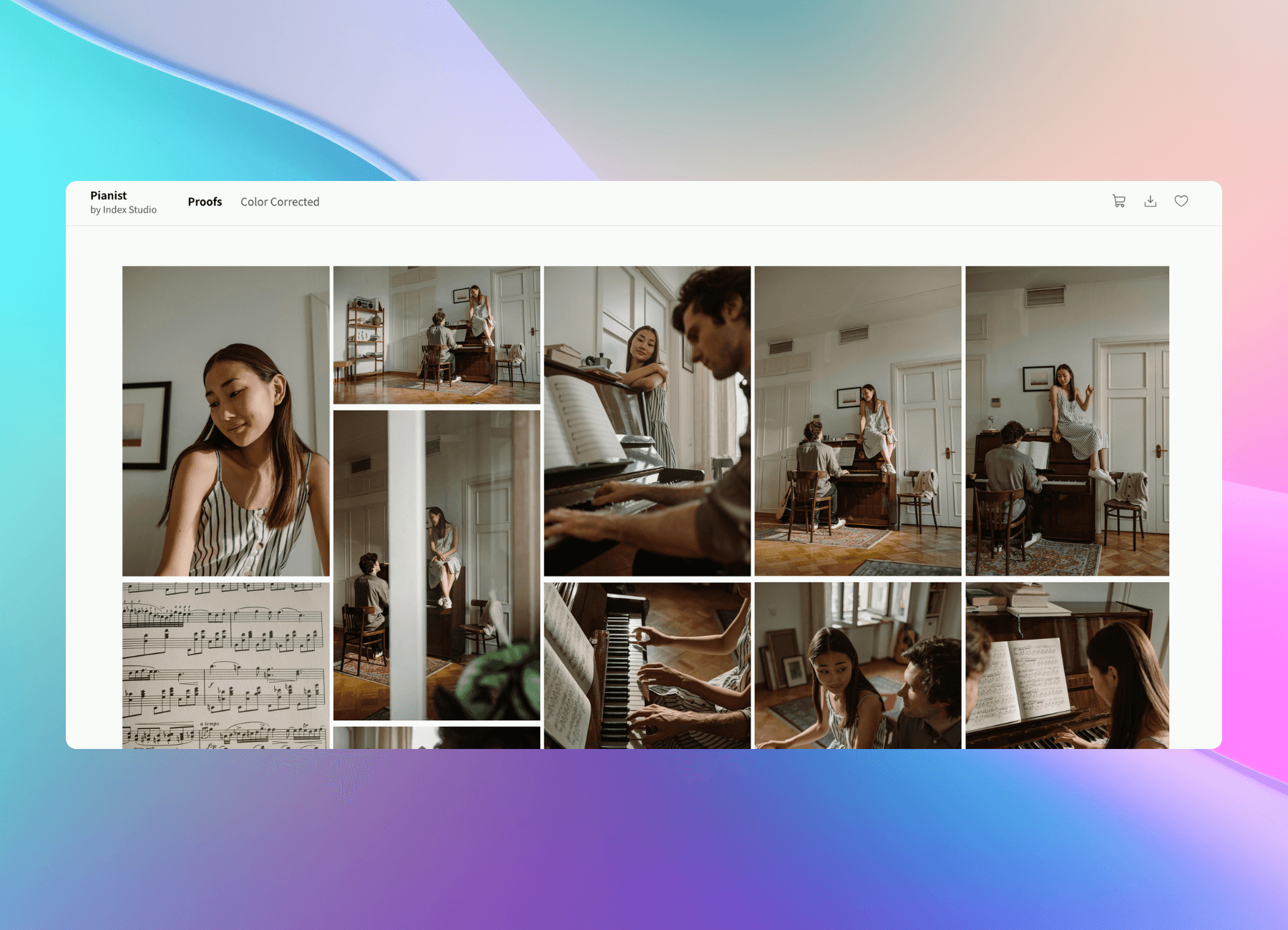
Using Pixpics Gallery, you can provide an intuitive visual experience instead of relying on file names.
1) Clearly separate by albums
Upload photos by separating them into [Originals for Selection], [First Retouch], and [Final Edits] albums within the gallery. Instead of decoding complex file names, clients can simply relax and download photos exclusively from the 'Final Edits' album.
2) Overwrite directly with revisions
Did a client request a re-edit? There's no need to add _v2 to the file name and send it again. Simply 'replace' the existing photo with the new file in your Pixpics admin dashboard. The link remains the same, and the client will always see the most up-to-date version of their photos.
Recommended Workflow
- [Lightroom/Capture One] When exporting, batch-rename files using a clean rule (e.g.,
Date_Name_Final_001). - [Pixpics] Create a 'Final Edits' album in the gallery and upload the photos.
- [Delivery] Gently guide them by saying, "Please review and download your finished photos from the Final Edits album," and simply share the gallery link.
Conclusion
Don't make your clients decipher codes the moment they open their photos.
Clean organization and intuitive gallery delivery elevate the professionalism of your studio, leaving your clients feeling relieved and genuinely taken care of.
Create a clean delivery gallery with Pixpics
Deliver photos without file name headaches.
FAQ
Q. Do file names change when uploaded to Pixpics?
No, the original file names you upload remain exactly as they are. When clients download them, they save with the same file names, making it easy to check and manage later.
Q. What if the client gets confused between the original and retouched albums?
Once the retouching work is done, you can simply hide (make private) the existing 'Originals for Selection' album. Clients will only see the final retouched album, so there's absolutely zero confusion.